
Workflows and automations make a program reflect how your organisation actually works. A workflow defines the stages your activities move through, and an automation lets the completion of work update your control scores automatically. Setting these up means your maturity stays in step with the work being done, without anyone re-scoring controls by hand. This article covers both.
Editing the workflow
Select the Edit Workflow button in the upper right to open the Build Workflow page, where you can name and describe the workflow and review its activity log. Every workflow must include at least a To Do and a Completed status. Click a status to customise its name, colour, and transitions, use Add Status to create more, and use Reorder to change their order. A status with a lock icon cannot be moved or deleted. Save to apply your changes.
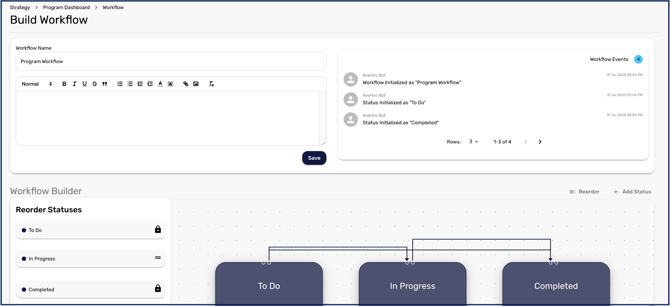
Tailoring the workflow lets you build in your own governance, for example by adding a Review status so an activity cannot be marked Completed until it has been reviewed.
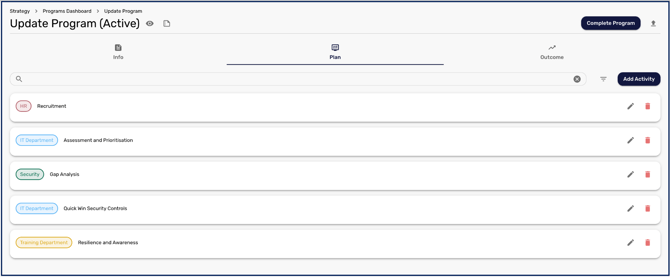
Creating automations
After saving an activity, you can define automations that change a control's response as the activity progresses. In the IF section, choose one or more workflow statuses that act as the trigger. In the THEN section, choose the controls to affect from any framework in your workspace and set the outcome for each.
The control picker lets you set the change control by control rather than applying one outcome across everything you have selected. Configuring an automation takes slightly longer as a result, but a single automation can move different controls to different scores — so you need fewer automations overall, and less unpicking later when one rule overwrites another.
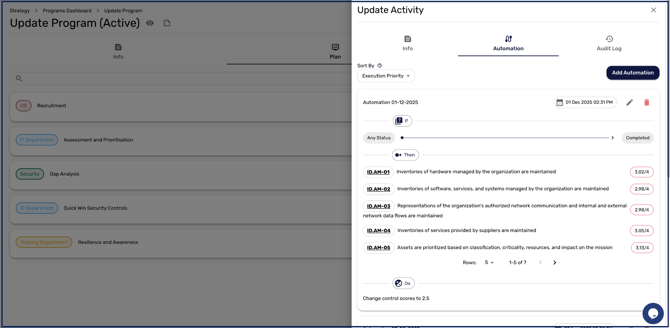
Automations execute in list order, and a later rule can overwrite an earlier one if they affect the same controls. You can sort them by newest or oldest to control their execution order.
Choosing which controls an automation affects
When building an automation you can select either subjective controls - the controls of your own framework, such as NIST or ISO - or objective controls from the Master Control Framework. Previously only subjective controls could be selected, which meant teams scoring objectively had to work out which Master Control Framework controls underpinned theirs and add those by hand. You no longer need to do that. Pick the controls in whichever framework you actually work in, and set the outcome for each.
Advancing an activity from an Issue treatment action
Automations are not the only way an activity's status changes. Each treatment action on a risk or issue can be linked to a program activity together with a target status. When someone marks that action complete, the activity advances to the target status automatically.
This closes the loop between remediation and delivery: the person doing the remediation work updates the action they are actually working on, and the programme board reflects it without anyone updating two places. Treatment actions are set up on the risk or issue itself rather than here, see How to Create an Issue.
With your workflow and automations set, your program runs the way your team works and keeps your control scores current as activities progress. Day-to-day tracking is covered in Understanding Program Management.