
An assessment pairs an entity with one or more questionnaires and sends it to a contact at the entity to complete. This is the step that actually gathers the third party's responses, which you then review. This article covers sending an assessment, how the entity answers it, and tracking those you have sent.
Sending an assessment
- Navigate to Assessments > Entities, open the Assessments tab, and click Create New Assessment.
- Give the assessment a Name, then select the entity from the drop-down or use Add New Entity to create one.
- Add the questionnaires to send by selecting existing ones with the plus button, or by clicking Upload Questionnaire to bring in a new one.
- Click Send to customise the email to the entity, then Send again to dispatch it.
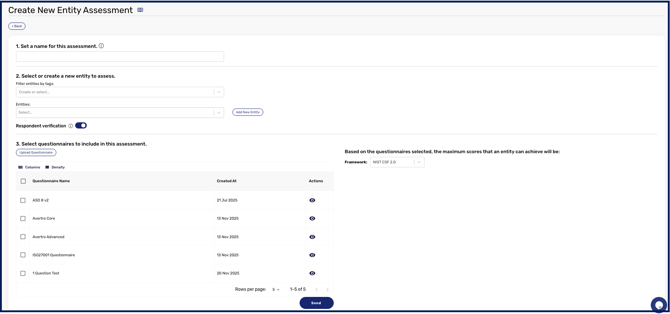
Max scores against your primary framework display dynamically, and you can switch to an alternate framework from the drop-down to view different scores.
How the entity answers
The entity opens the questionnaire from the link in their email. They can search and filter questions, then answer each one (a single-choice question uses a radio button, multiple choice uses checkboxes, and a comment question takes text), adding comments or attachments where a question requires them. They can share the questionnaire with colleagues as a Delegate (answer, comment, and attach) or an Admin (also submit and invite). Answers save automatically as they go, and only the primary contact can submit the completed questionnaire.
When inviting a colleague, the entity gives their first and last name, and that name has to be unique among everyone already working on the questionnaire. If an invitation is rejected for a reason that is not obvious, a name collision is the usual cause.
A colleague who is removed from the questionnaire loses access immediately, including any outstanding sign-in code they were sent.
An entity with a long questionnaire and existing answers elsewhere can upload them rather than retyping. The Upload Answer option takes a spreadsheet of pre-filled responses and matches them to questions. Processing happens in the background, and a file CyberHQ cannot read produces a downloadable error log rather than failing silently.
Secure access and one-time passcodes
An assessment can require the recipient to verify their email address before the questionnaire will open. Where it does, the link alone is not enough: the entity requests a six-digit code by email and enters it to begin. This is worth using for any assessment whose questions or attachments you would not want forwarded on.
What the entity experiences:
-
A verified session lasts four hours, after which they request a fresh code. Work already saved is not lost.
-
Five incorrect codes locks that person out for 15 minutes. The lockout applies to them alone, so a colleague working on the same questionnaire is unaffected.
-
Codes can only be resent once per minute, which stops an impatient recipient filling their own inbox.
-
Each delegated colleague verifies separately with their own code.
If you change an entity's primary contact email address while an assessment is outstanding, any codes already issued stop working and the new contact verifies from scratch.
Tracking sent assessments
From the Assessments tab you can view and filter the assessments you have sent, see each one's status (such as Awaiting response or Ready for review), and delete an assessment if it is no longer needed. Email notifications keep both you and the entity informed as the assessment progresses.
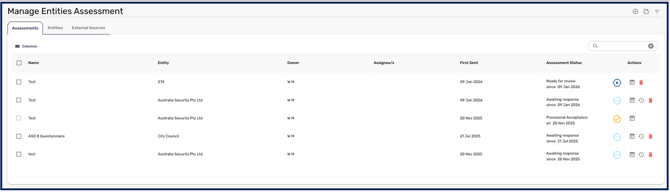
Once an entity submits their responses, you review and decide on them, which is covered in How to Evaluate and Reassess an Entity Assessment.
Seeing what has been sent
The assessment page keeps a full history of the emails sent to an entity as part of that assessment, showing each email's subject, its content, and whether it was delivered. You can resend any of them from the same view.
This means chasing a slow response, or confirming what a vendor was actually told and when, is done from the assessment itself rather than by searching your own inbox — and because delivery status is shown, you can tell the difference between an entity ignoring a request and never having received it.