
Once an entity submits their assessment, you review their responses and record a decision, and then keep the relationship current by reassessing on a schedule. This is where a third party's answers turn into a decision you can stand behind, and where any follow-up work is tracked. This article covers evaluating an assessment, the special case of provisional acceptance, and setting up reassessment.
Evaluating an assessment
- Navigate to Assessments > Entities and open the Assessments tab on the Manage Entity Assessments page.
- Find the completed assessment and click the Review Assessment icon. Use View Results to open the entity's responses, including their attachments and comments.
- At the top of the screen, select Accepted, Rejected, or Provisional Acceptance from the drop-down.
- Provide Review Details, including any Observations and Findings, and assign a severity using likelihood and impact. You can add as many review items as you need, and observation notes allow room for detailed context.
Severity here is not stored as a fixed value. It is recalculated from the likelihood and impact you set, against your current risk matrix, every time it is displayed. If you later re-band your matrix in Risk Settings, the severity shown on past assessments moves with it. That keeps old findings comparable with new ones, but it does mean a historical assessment can read differently after a matrix change. - Add any Notes or Further Action to justify your decision, then click Submit and follow the prompts to choose who to notify and your reassessment options.
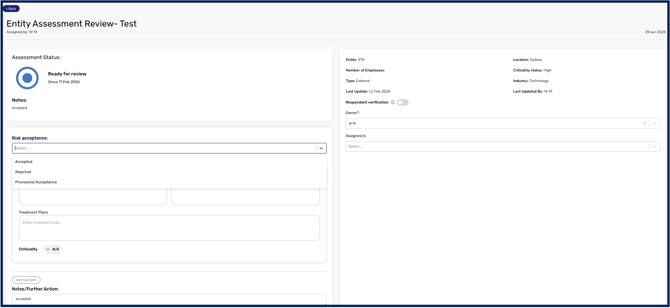
If you choose Provisional Acceptance, the Notes / Further Action field is mandatory.
Provisional acceptance and linking to an issue
Provisional Acceptance is for an entity that is broadly acceptable but has outstanding items to address. After you submit a provisional acceptance and work through the notification prompts, CyberHQ prompts you to create an issue: you fill out the required actions, assign someone to the task, and set a likelihood and impact. Once saved, the new issue appears in your Issues Register, so the entity's outstanding items are tracked and remediated like any other issue.
The assessment closes itself. Once every treatment plan item raised against the assessment is resolved, it moves from Provisional Acceptance to Accepted automatically. You do not need to come back and update it by hand, and an assessment will not sit in Provisional Acceptance after the work behind it is finished.
The trigger is completion of the treatment plan items, not resolution of the issue as a whole - so an issue can remain open while the assessment closes, provided its treatment items are done.
Setting up reassessment
To keep an entity current, open its Entity Report by clicking the accepted (green tick) or rejected (red cross) assessment under Assessments > Entities. Toggle Requires periodic reassessment on, set the reassessment interval in months, and set a reminder a number of days before the due date, then save. When a reassessment falls due, the entity's status changes to Reassessment due.
Sending a reassessment
From the same Entity Report, under Prepare reassessment, choose Prefilled to send the entity their previous answers to update, or New to send a fresh selection of questionnaires. Give the reassessment a name, customise the email, and send it. The entity completes it the same way as the original assessment, and you evaluate it the same way.
Keeping evaluations current and reassessing on schedule gives you an ongoing, evidenced view of your third-party risk, with any outstanding items tracked as issues until they are resolved.
Editing an assessment after review
A reviewed assessment is no longer locked. If circumstances change, or something was recorded incorrectly, you can go back and edit an assessment after it has been signed off, so the record reflects what you know now rather than what you knew on the review date.
Editing after review is deliberately quiet. It updates the findings and records the change, and it does nothing else: the entity is not emailed, linked issues are not re-resolved, and the assessment's status does not move. This is intentional, so correcting a typo months later does not land in a vendor's inbox as a fresh decision. If your edit genuinely changes the outcome, change the decision rather than the findings.
If someone else has saved the assessment since you opened it, your edit is rejected rather than overwriting theirs. Reload and reapply your change.