
User and Workspace settings are fundamentally intertwined to securely organize an organization's data and manage access within CyberHQ. Workspaces act as independent sub-units of a company (such as specific business units or locations with different compliance requirements), each with its own security frameworks, capability assessments, and reporting. User settings complement this structure by dictating exactly who can access these isolated environments and what they can do within them. By assigning users unique roles tailored to individual workspaces, the platform uses role-based access control and backend validation mechanisms to ensure strict data integrity and confidentiality, preventing individuals from viewing or modifying areas they lack permissions for.
User Settings
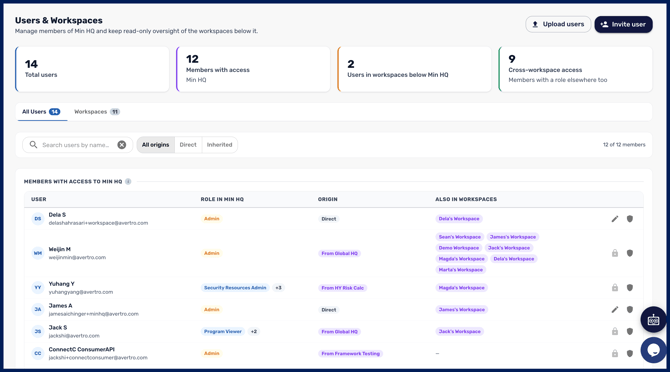
The User Settings page is the central hub for administrators to manage individuals' access and privileges across the platform. Within this tab, administrators can manually add new users or bulk upload them, as well as edit existing users' personal details like names, emails, and job titles. Crucially, this is where administrators assign users to their required workspaces with designated roles, or choose to archive and block accounts to revoke platform access when necessary.
Workspace Settings
The Workspace Settings page provides the tools necessary to build and maintain the structural hierarchy of an organization's CyberHQ instance. Administrators can use this section to create new workspaces by either starting completely blank or dynamically copying foundational settings from a parent workspace. Additionally, this page allows users to edit a workspace's name and description, delete workspaces that are no longer needed, and directly manage which users and roles are assigned to that specific environment so permissions can be managed more granularly.
Seeing users across parent and child workspaces
Where your organisation uses a hierarchy of workspaces, user visibility follows that structure. A user based in a parent workspace who has been granted access to a child workspace appears in that child workspace's user list, so the list reflects everyone who can actually reach the workspace rather than only those created within it.
Parent workspace administrators also get a read-only view of users across all their child workspaces. This gives you a single answer to "who has access where" without opening each workspace in turn - useful for access reviews, joiner and leaver checks, and audit evidence.
It is a view rather than a control. To change someone's access in a child workspace you switch into that workspace and manage them there. Access always flows downward: an administrator can manage their own workspace and the ones beneath it, never a workspace alongside or above.