
The Entities Report, under Reports > Entities, gives you a consolidated view of your third-party assessment programme: which entities you have assessed, what the outcomes were, and which still need attention. It matters because third-party risk is only useful if you can see it across your whole portfolio, and this report turns individual assessments into a programme-level picture you can act on and share. This article explains how to read it.
Setting your parameters
Set the report date, then narrow the view using the available filters: by entity, location, industry, criticality status, type (internal or external), physical access, network access, data access, and third-party status. Use Reset Filters to clear them. The parameters work the same way as in other reports.
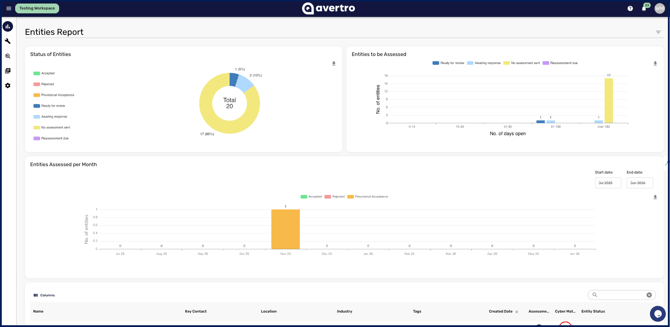
Status of Entities
A donut chart breaks your entities down by where they sit in the assessment lifecycle: Accepted, Rejected, Provisional Acceptance, Ready to Review, Awaiting Response, No Assessment Sent, and Reassessment due. This shows the overall health of your programme in one view.
Entities to be Assessed
This graph plots the number of entities against how many days they have been open, with bars showing those that are Ready for review, Awaiting response, with No assessment sent, or with a Reassessment due. It helps you see not just what is outstanding but how long it has been waiting.
Entities Assessed per Month
This chart shows the number of entities Accepted and Rejected each month across a date range you select, so you can track the throughput and outcomes of your assessment programme over time.
Entities details
A table at the bottom of the page lists each entity with its Name, Key Contact, Created Date, Assessment Score, Cyber Maturity Score, and Third Party Status. Sort by clicking a column header, and click a single entity to open its individual Entity Report.
The two scores measure different things and are easy to confuse:
-
Assessment Score is the percentage of available points the entity earned on the questionnaire you sent them. It describes their answers.
-
Cyber Maturity Score is the rating your reviewer set when accepting or rejecting the assessment. It describes your judgement of them.
A vendor can score well on the questionnaire and still carry a low maturity score if your reviewer was not satisfied with the evidence behind those answers. When you report to an executive, the maturity score is usually the one they want.
A third figure appears on the individual Entity Report: your own workspace maturity score, shown beside the vendor's so you can see how they compare to you. It is your score, not theirs.
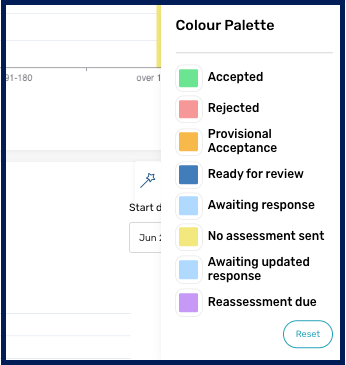
[NOTE: You can customise the report's colour palette for each label using the wand icon, and download any individual graph using the download icon at its top right.]
Read together, the Entities Report shows the state and trend of your entire third-party programme, and links straight through to each entity for the detail. For running the assessments behind it, see How to Evaluate and Reassess an Entity Assessment, and for the parameters and download options common to every report, see Getting Started with Reporting.