
Templates let you save an automation as a reusable starting point, and share it into CyberHQ so it can be initialised there without rebuilding it each time. They are how a connector you have built once becomes something your team, or your other workspaces, can reuse. This article explains how to create a template and make it available in CyberHQ.
Creating a template
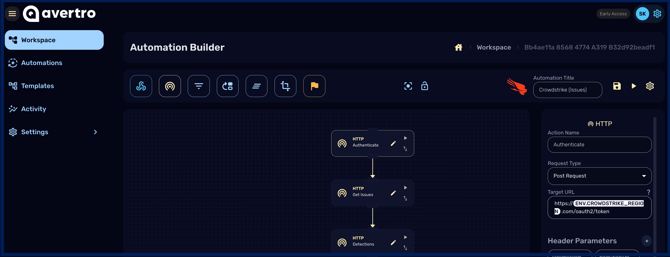
- In CyberHQ Connect, open the Your Automations tab and select an automation you have already built.
- In the Automation Builder, click the cog icon in the upper-right corner, labelled Workplace Settings.
- Choose Save as Template. A green confirmation message indicates the template was created.
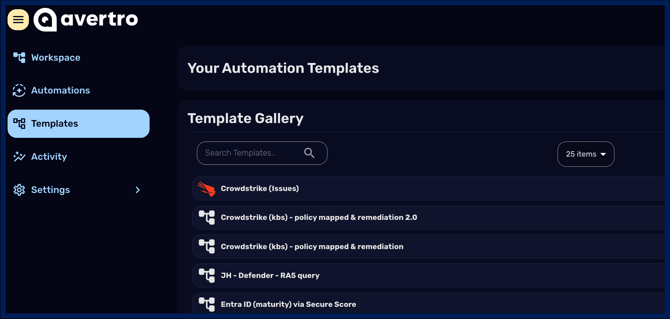
- Open the Templates page from the navigation bar. Your new template appears at the top of the Your Automation Templates list.
Making a template available in CyberHQ
For a template to appear inside CyberHQ, your Connect organisation must be linked to your workspace (covered in the Getting Started section). Once linked, select the template and, in Workplace Settings, toggle the Externally Available switch on. The template then becomes visible in CyberHQ under Settings > Connectors > Templates, where it can be initialised.
Using a template
When you create a new automation, you can start it from a template, which generates an editable copy you can adjust. This is the quickest way to stand up a connector for a common tool, and you can then refine it for your environment.
For the per-tool templates and how to initialise them, see the guides in the Connector Documentation section.