
Customizing your email notifications ensures you receive the most relevant alerts from across the platform without being overwhelmed by ones you don't need. Timely alerts, such as a risk moving above your appetite or an issue being assigned to you, let you act on changes as they happen rather than discovering them later.
The notification bell and your Tasks list
The bell icon in the top toolbar is where CyberHQ surfaces anything that concerns you, and it separates the two things you care about differently:
-
Tasks are items that need you to do something: a control assigned to you for attestation, an issue you now own, a third party awaiting your review. These also appear on your Tasks page, which is the fuller view of the same list.
-
Notifications are informational. Something happened that you should know about, but it needs no action from you.
Each tab carries its own unread count, so an urgent task is never buried under informational noise. You can mark items read individually or clear a tab at once. The bell updates live, so you do not need to refresh the page to see something arrive.
Setting Up Your Preferences
To set up your preferences, follow these instructions:
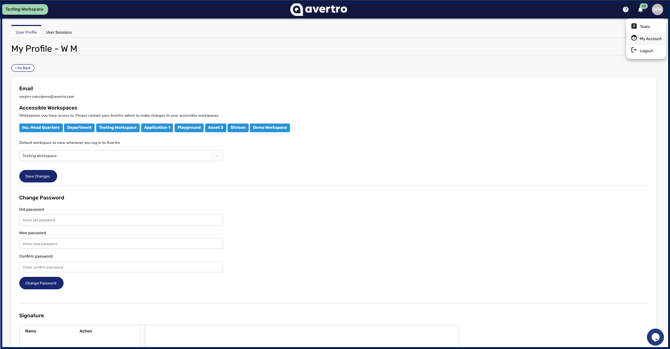
- Navigate to My Account: Click on your name in the top right-hand corner of the Avertro platform to open the user menu, and then select My Account (or My Profile).
- Locate Email Notifications: Within your profile settings, scroll down to find the Email Notification Customisation section.
- Select Your Preferences: Expand the different module categories (such as Capability, Risk, or Issues) to view the specific alerts available, and switch the toggles on for the notifications you wish to receive.
When emails actually arrive
Turning a notification on does not mean an email arrives the moment the event happens. To avoid flooding your inbox, CyberHQ batches notification emails and sends them twice a day, around midday and again at the end of the day. Everything of the same type that has accumulated since the last send arrives as a single consolidated email rather than one message per event.
Two things follow from this:
-
The in-app notification is always created immediately, whether or not you have its email turned on. If you need to see something the moment it happens, watch the bell rather than your inbox.
-
Turning an email off does not turn the notification off. You will still see it in CyberHQ. The preference controls delivery to your inbox only.
External contacts without a CyberHQ account, such as a vendor completing a questionnaire, are always emailed directly, since they have no in-app notifications to check.