
The Trust Portal is a shareable, externally facing page where you can present your organisation's security posture, including compliance certificates, key documents, and control information, to customers, partners, and prospects without giving them access to CyberHQ itself. It lets you demonstrate trust on demand while staying in full control of who sees what and for how long. You manage it from Settings > Trust Portal. This article covers building your portal, managing who can access it, and how external stakeholders request access.
Building your Trust Portal
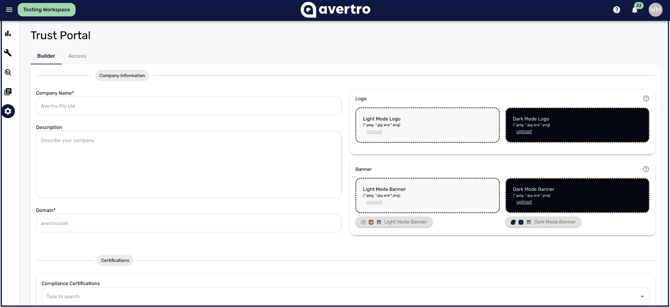
Navigate to Settings > Trust Portal to set up the content your portal displays. You can populate and control visibility for each of the following sections:
- Company Information: an overview of your organisation and its security approach.
- Compliance Certificates: evidence of the standards and certifications you hold.
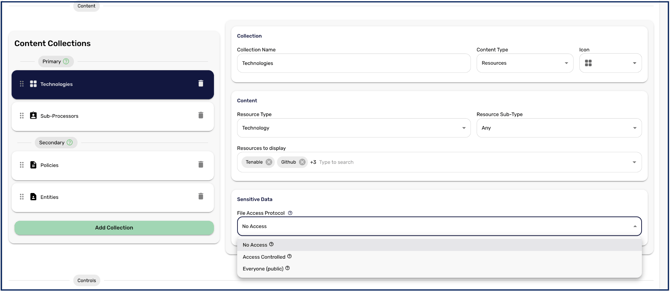
- Content Collections: grouped documents you choose to make available.
- Controls: control information that demonstrates your security maturity.
- FAQ: answers to questions external stakeholders commonly ask.
For each item you set an access policy, typically No Access, Access Control (visible only to approved users), or Everyone (publicly visible), so you decide exactly what is open and what is gated. Once configured, Save to publish your portal and generate the shareable link you can send to external parties.
Set sensitive items to Access Control rather than Everyone, so that only approved stakeholders can view them while general information stays open.
Managing access
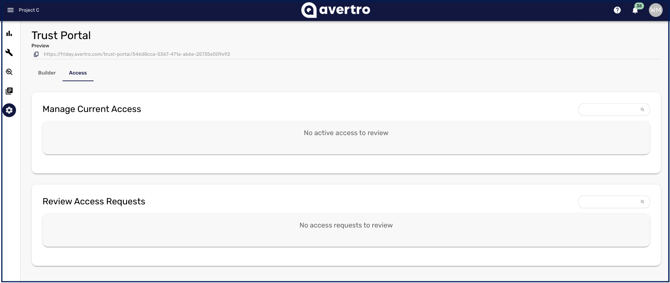
When someone requests access to gated content, you review and control it from the Access tab of the Trust Portal settings.
- Go to Settings > Trust Portal and switch to the Access tab.
-
Under Review Access Requests, approve or decline each request. Approving requires an expiry date: access is always time-limited, defaulting to one week and adjustable up to a maximum of 90 days. You can include an optional note in the email the requester receives.
- To remove access at any time, use the red icon under Manage Current Access. This revokes the user's access in real time and emails them to confirm the change.
How external stakeholders request access
From the visitor's side, gaining access to gated content is self-service and verified by email, so you only ever approve named requesters.
The full journey runs as follows:
-
The visitor opens your portal link and browses whatever you have made public. Anything set to Access Control is visible as gated rather than hidden, so they can see that further material exists.
-
They submit a request with their name, email address and an optional note. If they already have a live or pending request on your portal, CyberHQ recognises it rather than creating a duplicate.
-
You receive a notification and approve or decline it from the Access tab.
-
Once approved, the visitor requests a six-digit code by email and enters it to sign in. There is no password and no CyberHQ account.
Sessions are one hour long. That hour is separate from the expiry date you set when approving. A visitor with 30 days of access still signs in again with a fresh code each hour they come back. This surprises people, so it is worth saying in the covering email if you are sending a portal link to someone who will work through a lot of evidence in one sitting.
Revoking access takes effect immediately. If the visitor is signed in at the time, their session ends as you revoke it rather than running to the end of the hour.
Seeing what visitors have done
Your portal keeps an activity log of what external visitors do while they are on it: access requested, approved, declined or revoked, each sign-in, and each file downloaded.
This is more useful than it first appears. It tells you which prospect actually opened your SOC 2 report rather than merely asking for it, which evidence gets looked at most and therefore deserves to be public rather than gated, and it gives you a record of who saw what and when if a customer later asks.