
Your profile settings define both how your organisation appears in CyberHQ and how your own account behaves and stays secure. You usually set these up when you first onboard, but they are not one-time tasks. You will return to them whenever your organisation rebrands, your details change, or you want to tighten your account security. This article gives you an overview of the three areas of profile management and points you to the detailed steps for each.
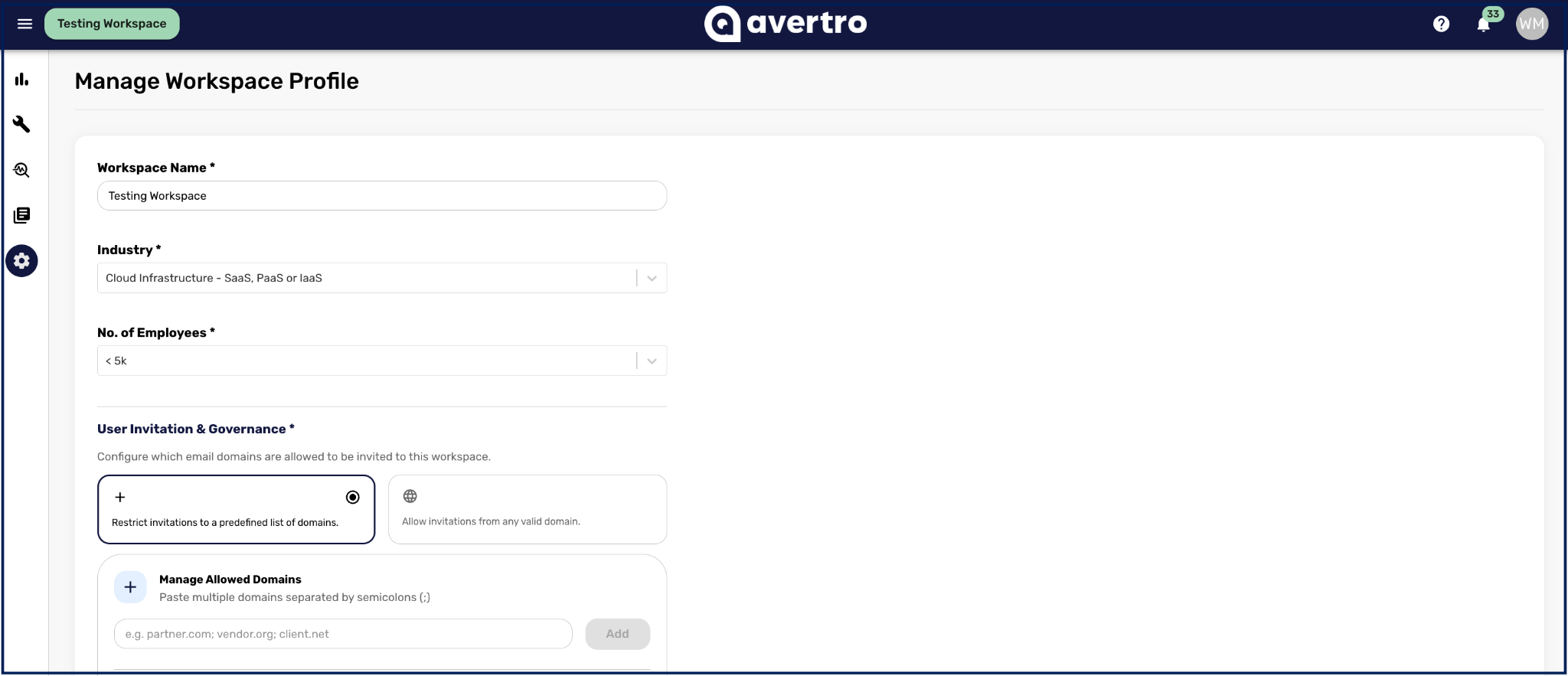
Your Workspace Profile
Your workspace profile holds your organisation's identifying details: Workspace Name, Workspace Domain, Industry, Number of Employees, company logo, and visual theme. You manage it from Settings > Profile. Keeping these accurate matters because they brand the platform for your team and identify the workspace across reports. For the full step-by-step, see Setting up Your Workspace Profile.
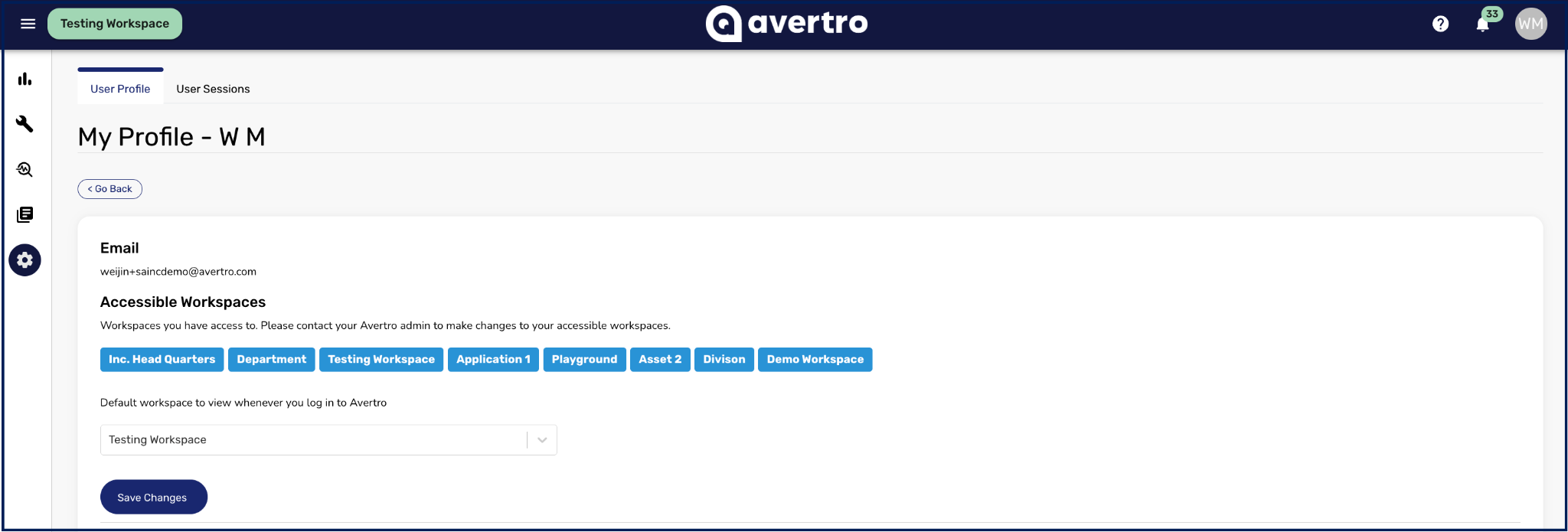
Your Personal Profile
Your personal profile, found under My Account (via your name in the top right-hand corner), is where you manage settings tied to you as an individual user: your accessible workspaces, your default workspace, your email address, your password, and your custom signature and greeting. These settings follow you rather than the organisation. For the full detail, see Setting up Your Personal Profile.
Account Security (Multi-Factor Authentication)
Multi-Factor Authentication (MFA) adds a second layer of protection to your account by requiring a token in addition to your password when you log in. To enable it, click your name in the upper right-hand corner to open your user profile, toggle the MFA switch at the bottom of the page, and follow the instructions in the pop-up. From your next login onward you will be prompted for your MFA token.
[NOTE: MFA is only available for single sign-on (SSO) accounts. If you do not see the option, your account is likely not set up for SSO, so check with your administrator.]
Between these three areas you control how your organisation is represented, how your own account is configured, and how securely you sign in. For questions that span more than one settings area, the Settings FAQ points you to the right place.