To set up a security framework in CyberHQ, navigate to the left-hand menu and click on Settings > Capabilities, which will open the Capabilities Settings page. From there, ensure you are on the Primary Framework tab, where you can configure the core foundational elements of your capability assessments.
1. Uploading your Framework
- At the top of the page, you'll see drop-down menus to set your Primary Framework and threat framework. Beside those is your Upload Framework option. Clicking this will open a tab where you can upload the required files for a framework.
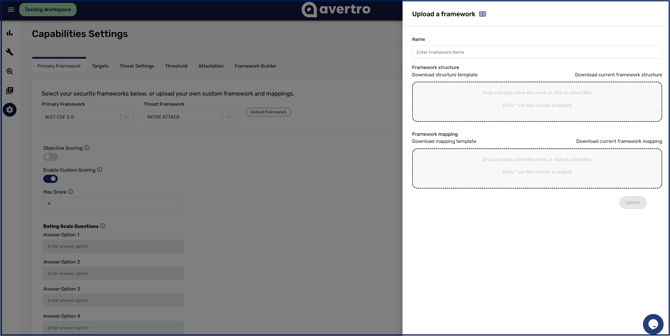
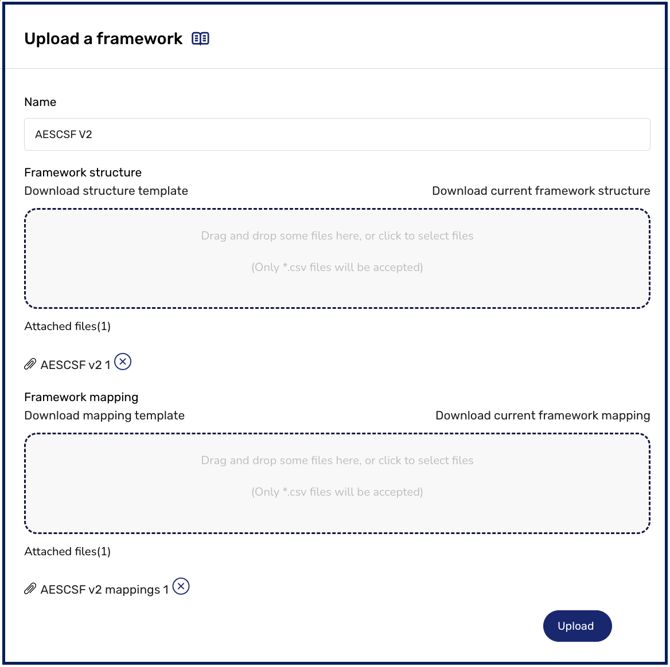
- In the popup menu, there are two fields, one for a Structure File and one for a Mapping File. The Structure File defines the structure of your security framework by categories, sub-categories, individual controls, and answer options. The Mapping File links each control from the structure file to your Master Control Framework, which you can use for objective scoring or later for cross-walking progress between other frameworks. You can either upload provided framework files or upload a custom framework. If you are uploading a customised framework, you can download the templates for the structure and mapping files, and select Upload once this is completed.
What will cause an upload to fail
A framework import requires correct format across all controls. If any row in your structure file fails validation, the whole upload is rejected rather than partially applied, which protects you from ending up with a half-built framework.
Instead of importing, CyberHQ returns a downloadable CSV error log listing every row that needs attention.
A structure file is rejected if any of the following are true:
-
a row is missing its ID or Index, or reuses one that appears elsewhere in the file
-
a category points to a parent category that does not exist in the file
-
a question has no metric type set
-
a question has fewer than two answer options
Your mapping file has one limit worth knowing before you build it. The total maturity increase mapped onto any single destination control cannot exceed 5, so you cannot stack several Master Control Framework controls onto one control and push it past the top of the scale. If a control needs to draw on several sources, weight them so they sum to 5 or less.
- Once the upload is completed, you can close the upload popup menu and choose your new framework from the Primary Framework drop-down menu. If you are uploading additional frameworks, you do not need to select Primary Framework unless you want to change the framework being targeted by other settings and used for other tools like reporting and threat modelling. All frameworks uploaded will appear in your Capabilities Assessment.
2. Setting your Scoring Modes
- Once you have defined your security framework, you can then define how you want to score it. Subjective Scoring is a scaled score individual to each framework that you can set based on your team's own assessment of how effectively you are meeting the requirements of a control. This is the default option.
- Objective scoring associates the score for a control with a list of binary Yes or No questions, providing your team with an objective list of related requirements you can answer to more strictly evaluate your adherence to a control's requirements with data-driven answers. You can enable this by toggling the Objective Scoring option. These binary questions are pulled from your Master Control Framework, and will also carry across to other frameworks, saving you time on future frameworks where the same questions are relevant to different controls.
- Beneath this option, there is a section for Custom Scoring if you have a framework with a consistent scale across all controls (for example, the ISO 27001:2022 3 point scale version). By enabling this, you can set the answer fields you want to be selectable across all controls, relevant to your organisation.
3. Deleting a Framework
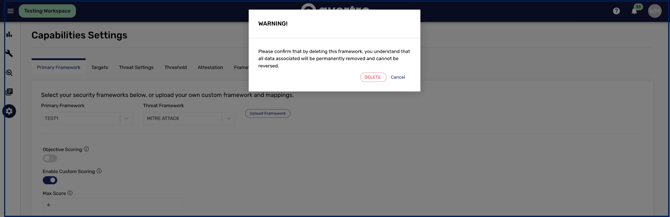
If you need to delete a framework from your workspace, you can click into the Primary Framework drop-down menu and click the bin icon next to the framework you want to delete.
You cannot delete the Master Control Framework, or a framework currently selected as the primary framework.
A warning pop-up will ensure you want to make this irreversible change, and it is worth understanding how much it removes before you confirm. Deleting a framework permanently removes far more than the framework itself: its categories and controls, every score recorded against it, the control mappings connecting it to your Master Control Framework, its thresholds, any comments left on its categories, its historical snapshots, and any threat scenarios built against it. An AI framework translation still in progress for that framework is discarded as well.
If you scored objectively, the underlying answers live on your Master Control Framework and are not affected. Everything specific to the deleted framework is gone, including the trend history your reporting draws on, so export anything you need to keep before you confirm.