
In CyberHQ, you can commit to a requirement to periodically attest to the requirements of your security framework using our attestation settings, and also enforce evidence requirements if needed, in order to show your auditors that your team is not only meeting your requirements but also periodically enforcing them.
To access the Attestation section, click on Settings > Capabilities in the left-hand navigation menu, and then select the Attestation tab.
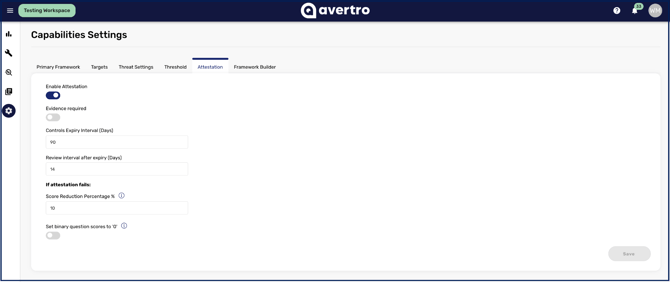
From there, you will be able to set each option for Attestation in line with your team's requirements:
- Enable Attestation: this master switch turns the attestation workflow functionality on or off for your capability assessments.
- Require Evidence: this toggle enforces the rule that users must provide a comment or an attachment when attesting a control.
- Controls Expiry Interval (Days): this defines the exact duration, in days, after which a control expires and requires re-attestation.
- Review Interval after Expiry (Days): this sets the grace period, in days, that a control can remain expired and un-attested before your Capability Score is negatively impacted.
- Score Reduction Percentage %: this specifies the exact percentage by which your Capability score will decrease if an attestation is not reviewed and fails.
- Set binary question scores to '0': this setting dictates whether binary question scores will automatically be reduced to zero if an attestation fails.