
Managing entities is how you record the third parties you want to assess, along with the context that determines how much they matter to your risk, such as their criticality and the access they have to your data. Keeping this list accurate is the foundation for everything else in this area, because you can only assess an entity that has been recorded. This article covers creating, bulk-uploading, maintaining, and exporting your entities.
Creating an entity
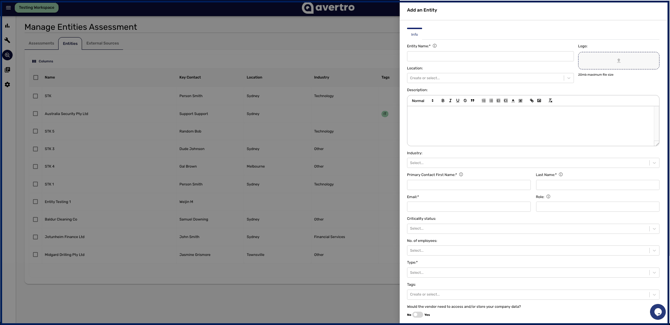
- Navigate to Assessments > Entities and click Create New Entity.
- Complete the required details, marked with an asterisk: Entity Name, the primary contact's First Name, Last Name, and Email, and the entity Type (internal or external).
- Add the optional context that helps you prioritise the entity, including Location, Description, Industry, Criticality, Number of Employees, Role, and Tags, and indicate the access the entity has to your company data, your network, and your physical premises.
- Upload any relevant files, then click Save.
Bulk uploading entities
To add many entities at once, click Upload Entities, download the template, complete a row for each entity using the same fields as above (separating multiple tags with a semicolon), and upload your completed CSV.
Viewing, editing, and deleting
Your entities are listed under the Entities tab, where you can open one to view it, edit its details, or delete it when it is no longer relevant.
Deleting an entity or an assessment removes it from your register rather than destroying it, so the record and its history survive. One consequence is worth knowing: deleting an entity's most recent assessment rolls that entity's status and score back to the assessment before it, or to No assessment sent if there are none left. Deleting a bad review therefore reinstates the previous one rather than clearing the slate.
Downloading a summary
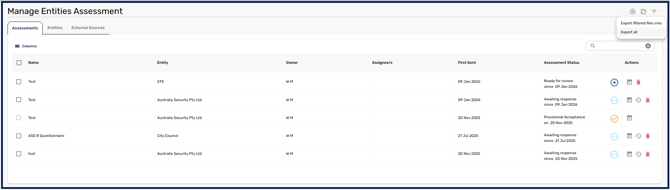
From the Assessments tab, click the CSV icon to download a summarised table of all your entity assessments, which is useful for offline reporting or sharing.
With your entities recorded, you can build the questionnaires you will send them, covered in How to Create and Manage Questionnaires.