
Before any data can flow between the two platforms, you need to authorise a secure link between your Connect organisation and your CyberHQ workspace. This one-time handshake exchanges an organisation identifier and a private token so that each platform trusts the other. It also does the groundwork that makes connectors possible, because once linked, your CyberHQ module schemas are shared with Connect so automations know exactly where to send data. You will need Administrator access in Connect to generate the token.
- In Connect, go to Settings and select Organization from the navigation menu.
- Copy the Organization Identifier shown below your organisation name.

- In CyberHQ, go to Settings and select Connectors from the navigation menu.
- On the Connectors page, click Settings and paste the identifier into the Connect Organization ID box. Keep this page open, as you will return to it for the token.
- Back in Connect, go to Settings and select Tokens from the navigation menu.
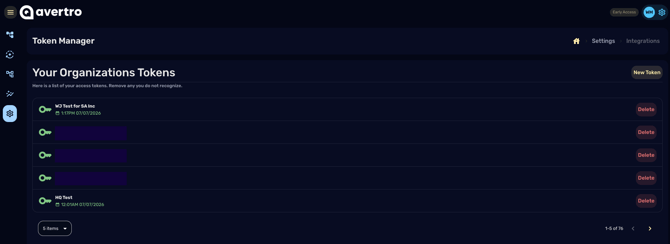
- On the Token Manager page, click New Token in the top-right corner and give the token a name.
- Copy the token you just created.
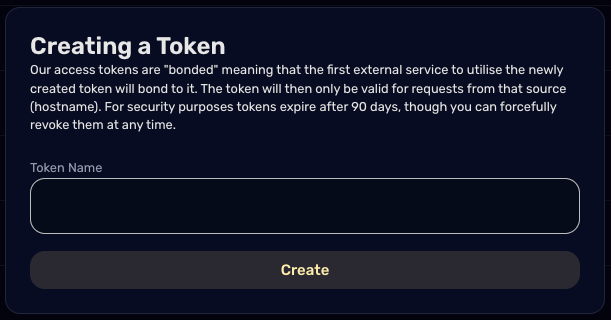
This token can only be viewed once, so save it somewhere secure straight away. If you lose it, you will need to create a new one.
- Back in CyberHQ's Connector Settings, paste the token into the Connector Token box and click Save.
What linking unlocks
Once the link is saved, the two platforms begin working together in two ways:
- Any externally available templates you create in Connect become visible within your Templates settings in CyberHQ, ready to use.
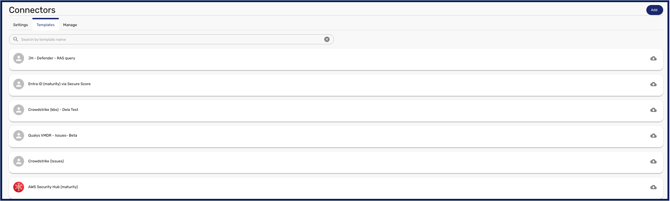
- The schemas of your CyberHQ modules are automatically imported into Connect, where you can view them in the Models tab under Settings. Models imported from CyberHQ are marked with a 'C', and they are what let your automations map incoming data into the correct module.
With Connect and CyberHQ now linked, you are ready to build your first integration and start bringing live data in. See How to Set Up your First Connector.