
Linking the controls that protect a Key Business System ties that system to your Capabilities Assessment, so the maturity of your most important systems is measured against the controls meant to secure them. Only systems marked as Key can be linked to controls, which is why the Key designation matters. This article walks through making those links and seeing the result.
1. In the navigation menu, select Catalogue > Business Systems.
Linking controls to a system that is not marked as Key will not contribute to your cyber maturity.
3. At the bottom of the Edit Key Business System page, choose the framework control or controls you want to link.
4. In the Link Controls via Resources drawer, evidence each control by either linking existing resources (resources already mapped to the controls you selected) or building new resources.
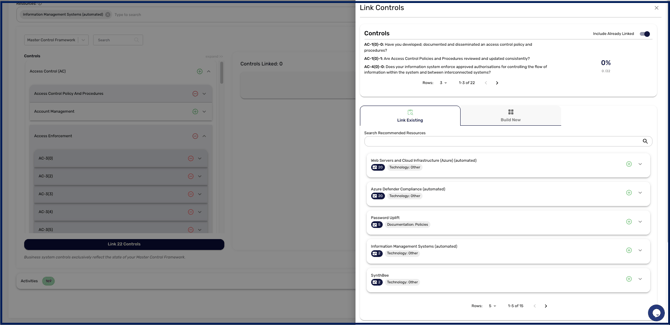
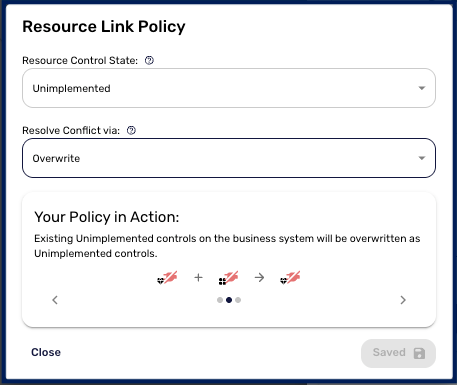
5. Choose the Resource Link Policy using the settings icon. There are two settings here, not one. The first decides which answers are brought across, implemented or unimplemented; the second, offering Preserve, Combine or Overwrite, decides what happens where the resource and the business system disagree. The preview shows how your choices will affect each control's status before you commit to them.
[VERIFY: the label of the first setting in the interface.]
To see the result, go to your Capabilities Assessment. Each control you linked now shows the Key Business System against it, and that control is locked from editing in the assessment, so its status is driven by the linked system rather than changed by hand. This keeps the maturity of your crown-jewel systems anchored to the controls that protect them.