
Just as you can bring data into CyberHQ in bulk, you can take it back out. Exporting your data downloads the records held in a module as a CSV file, giving you a portable copy for offline reporting, for keeping a backup, or for making bulk edits that you then re-upload. Rather than changing dozens of records one by one in the platform, you can export them, edit the spreadsheet, and upload the file back, completing a full round trip. This article explains how to export, and how to use that export to update your data efficiently.
How to export your data
The following steps apply to any module that supports CSV export, such as Business Systems and Security Resources.
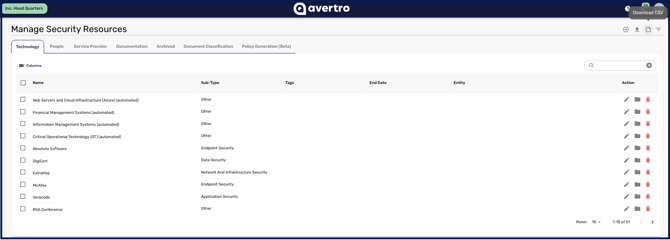
- Navigate to the module you want to export from in the left-hand menu, for example Catalogue > Security Resources.
- Locate the Download option for that module, which sits alongside the upload and management controls.
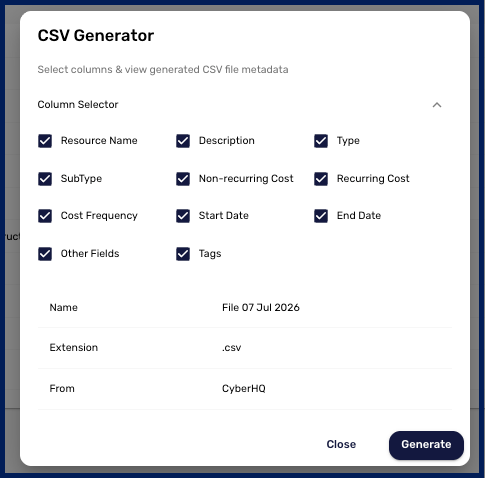
- Select the columns you want to include in your export. For Security Resources, for instance, you can choose fields such as Resource Name, Description, Type, SubType, Non-recurring Cost, Recurring Cost, Cost Frequency, Start Date, End Date, and Other Data.
- Confirm the download to save the records to your computer as a .csv file.
Using an export to make bulk edits
Exporting is the starting point for updating large numbers of records at once. Because the file you download mirrors the structure of the upload template, you can edit it directly and bring it back in.
- Export the module's data using the steps above.
- Open the CSV and make your changes, updating values, correcting details, or adjusting control mappings across many records at once.
- Save the edited file in .csv format and upload it following the process in How to Bulk Upload your Data via CSV.
Edits made in your exported file only take effect once you upload the file back into CyberHQ. The export itself is a copy, so changing it does not change anything in the platform until you re-import it.
With export and re-import working together, you have a fast way to keep large datasets accurate without manual record-by-record editing. Any changes you upload flow straight back into your assessments, risk calculations, and reports, so your CyberHQ data stays current with minimal effort.