
A threat scenario captures the set of threat-actor tactics and techniques you want to model against your environment. CyberHQ builds scenarios on the MITRE ATT&CK framework and gives you three ways to create one, so you can start from AI, from a template, or from your own knowledge. This article covers all three.
- Navigate to Assessment > Threat Modelling and select Add Scenario.
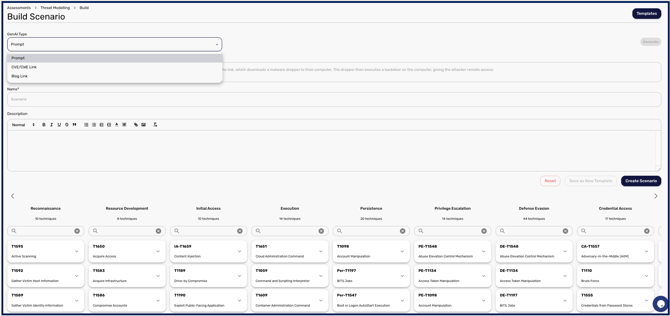
Using Generative AI
Choose the Generative AI option, then one of three inputs:
- Prompt: describe the threat in natural language, as you would with any large language model.
- CVE/CWE Link: paste a link from a vulnerability source to pull in the relevant techniques.
- Blog Post: paste a link to an article discussing a threat to pull in the relevant techniques.
Select Generate. The scenario is built in the background rather than immediately, and CyberHQ opens it for you once it is ready, with the relevant tactics, techniques, objectives and actions populated into the description and linked into the MITRE ATT&CK dashboard below. Generation occasionally fails, in which case you will see an error and can simply try again.
Using a template
Select Templates and choose a template from the drawer to start from. Once selected, you can adjust the description and linked tactics, then either save your changes as a new template, update the existing template, or move straight on to creating the scenario.
Creating a scenario manually
Instead of AI or a template, you can edit the description yourself and link the relevant tactics directly from the dashboard. To do this, click into any of the intrusion techniques to expand them, and on the specific technique tiles, you have an option you can select to add them to your current scenario. Unselected techniques will remain coloured ‘white’.
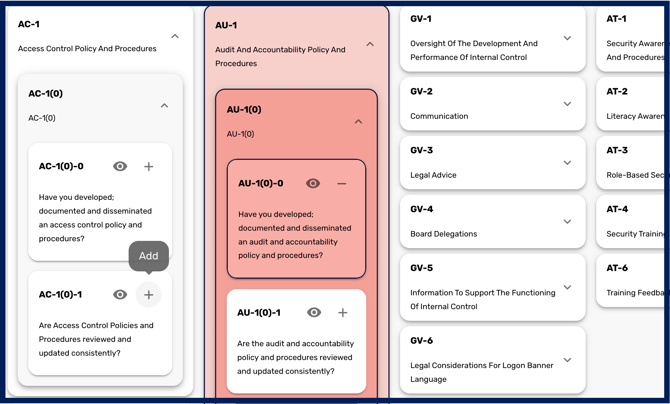
The technique or sub-section they belong to will be coloured based on the average effectiveness of the control measures you have in place relevant to the techniques you’re mitigating against in the threat scenario.
A scenario needs at least two tactics. If you link controls under only one tactic column and try to save, CyberHQ will warn you that those links will be discarded. An attack path with a single step is not a chain, so the mapping is not retained. Link controls across at least two tactic columns before saving.
Whichever method you use, select Create Scenario at the end to save the scenario as an instance you can then run simulations on.
With a scenario saved, you can simulate the effect of resources and controls against it, which is covered in How to Run and Interpret a Threat Simulation.