
Assessing your capabilities is how you record, for each control in your framework, how mature your organisation is and the evidence behind that rating. Doing this thoroughly is what gives your maturity score its credibility, and it connects your controls to the business systems, issues, and resources they relate to. This article walks through scoring a control and everything you can attach to it.
- From the navigation menu, click Assessments > Capabilities.
- Use the search box and filters at the top right to find the controls you want to work on.
- Click a category to display its subcategories, then click a subcategory or control to open the assessment window on the right-hand side.
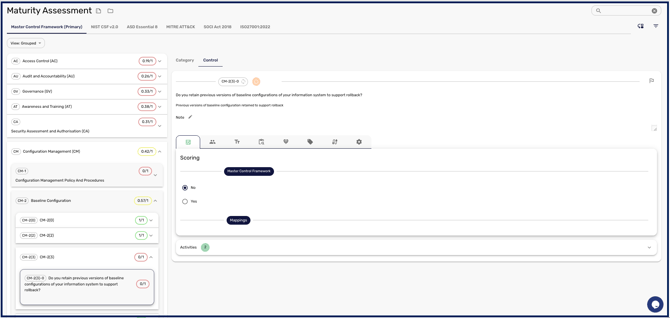
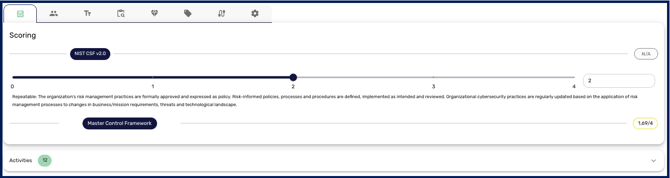
- Score the control. The method depends on your framework and scoring settings. With the Master Control Framework set as your primary framework, you score by selecting Yes or No for each control. With a custom framework, subjective scoring lets you type a number (for example 2.2) or use the arrows, while objective scoring lets you select Yes or No against each mapped Master Control Framework control. The two modes are explained in Understanding your Capabilities Scoring.
- Add supporting Notes, and use the Other Fields section for any additional information relevant to the control.
- Assign an Owner and supporting Assignees, then click Save.
- Support your score with evidence. Link existing resources through the Evidence section, or upload an attachment under Activities, which opens a Manage Resource pop-out so you can create a Security Resource directly from the assessment.
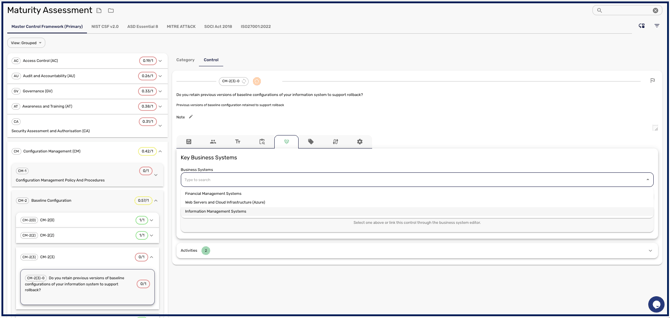
- Link related Key Business Systems and Issues to the control, creating a new issue with the plus icon if you need one. This ties the control to the systems it protects and the problems affecting it.
- Set the control's assurance status using the circle (Initial, Accepted, Rejected, or Requires Information), and use the flag icon to mark it as satisfactory or as needing more information.
- When a control is due for renewal, Attest it to confirm it still holds. Attestation cadence is governed by your attestation settings.
- To exclude items that do not apply to your organisation, designate a whole category, a subcategory, or an individual control as Not Applicable so it is left out of your scoring.
Setting or updating a capability, and adding comments or attachments, is automatically logged with the user and the time of the change.
With your controls scored and evidenced, your maturity score reflects a defensible picture of where your organisation stands, and each control is connected to the systems, issues, and resources around it.