
Adding a Business System records a system your organisation depends on, capturing who owns it, where it sits, and the rules it must meet. Recording these accurately builds the inventory the rest of the platform draws on, and marking a system as Key is what allows its protective controls to count towards your cyber maturity. This article covers adding a system, marking it as Key, and editing or archiving it later.
From the navigation menu, click Catalogue > Business Systems, then click Add Business System to open the form. To bring in many systems at once instead, use Upload Business Systems (see How to Bulk Upload your Data via CSV).
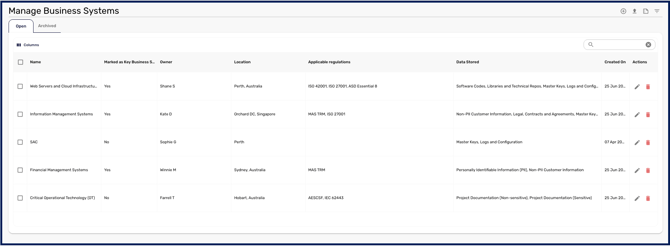
If you are uploading in bulk, only the system Name is strictly required, but four rules govern how the rest of your file is read, and each one silently changes your data rather than rejecting the row:
-
a Data Stored value CyberHQ does not recognise is recorded as Other
-
a Status value other than the literal word
ARCHIVEDis recorded as Open -
a system can only be imported as Key if its status is Open
-
a control score that is not
0or5is recorded as0
Check your file against these before uploading, because a mistyped status or an unexpected data type will import cleanly and quietly hold the wrong value.
- Enter the Name and Description of the system, and fill out the other fields relevant the business system you're creating.
- If the system is high-value, mark it as Key. Marking a system as Key lets you link and answer Capabilities Assessment controls for it. A system that is not marked Key cannot contribute to your cyber maturity.
- Answer the Optional Considerations questions to automatically indicate which regulations apply. These span Confidentiality, Integrity, Availability, and Safety and Reliability.
- Add the Owner responsible for managing and maintaining the system, the Location, the Key Processes Supported, and any Applicable Regulations the system must comply with.
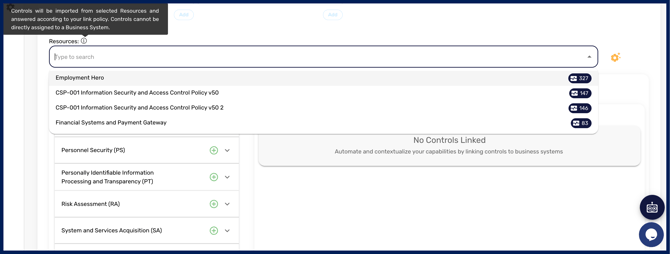
- You can then optionally add other key business systems or security resources that have linked controls to this Business System to import the associated controls from the 'Resources' dropdown menu , or you can select controls manually to associate with this Business System from the 'Controls' list beneath it.
- When finished, you can save your new Business System or your changes to your existing business system at the bottom of the form.
Ensure that you Save after making your changes to an existing Business System otherwise your edits will not be saved.
Archiving a Business System
When a system is decommissioned, archive it rather than leaving it in your live inventory. Archiving is not simply hiding the record, and it is worth understanding what it does before you archive something you may want back.
Archiving a Business System:
-
unlinks every Capabilities Assessment control currently linked to it
-
unlinks it from any Issues raised against it
-
removes it from any Trust Portal collections it appeared in
-
clears its Key designation
Those links are not restored if the system is later reinstated, so archiving a Key Business System means rebuilding its control links by hand if it comes back. If a system is only temporarily out of use, consider leaving it in place instead.
Because a Key Business System's linked controls are locked in your Capabilities Assessment while the link exists, archiving also releases those controls to be scored directly again. Check your assessment after archiving a Key system so you know which controls have returned to manual scoring.